 North Quasar
Getting started
- Install Activity Lens from the Atlassian Marketplace. A Jira admin needs to do this once for the site.
- Open a dashboard and click Edit, then Add widget (on classic dashboards: Add gadget).
- Search for Activity Lens and add it.
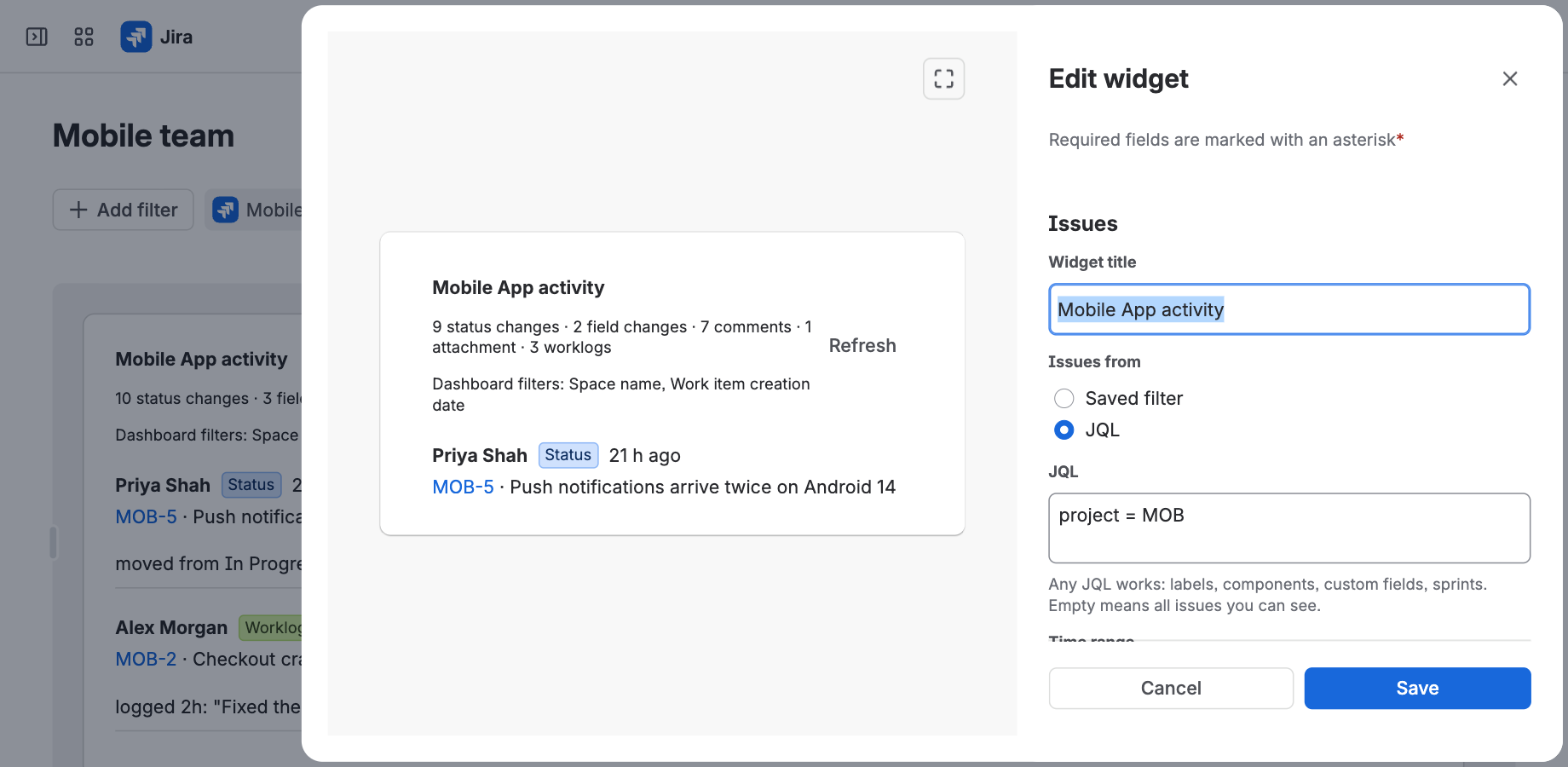
- In the settings panel, choose the issues: a starred saved filter, or any JQL. Leave JQL empty to see every issue you can view.
- Pick a time range and the kinds of activity you want, then click Save.
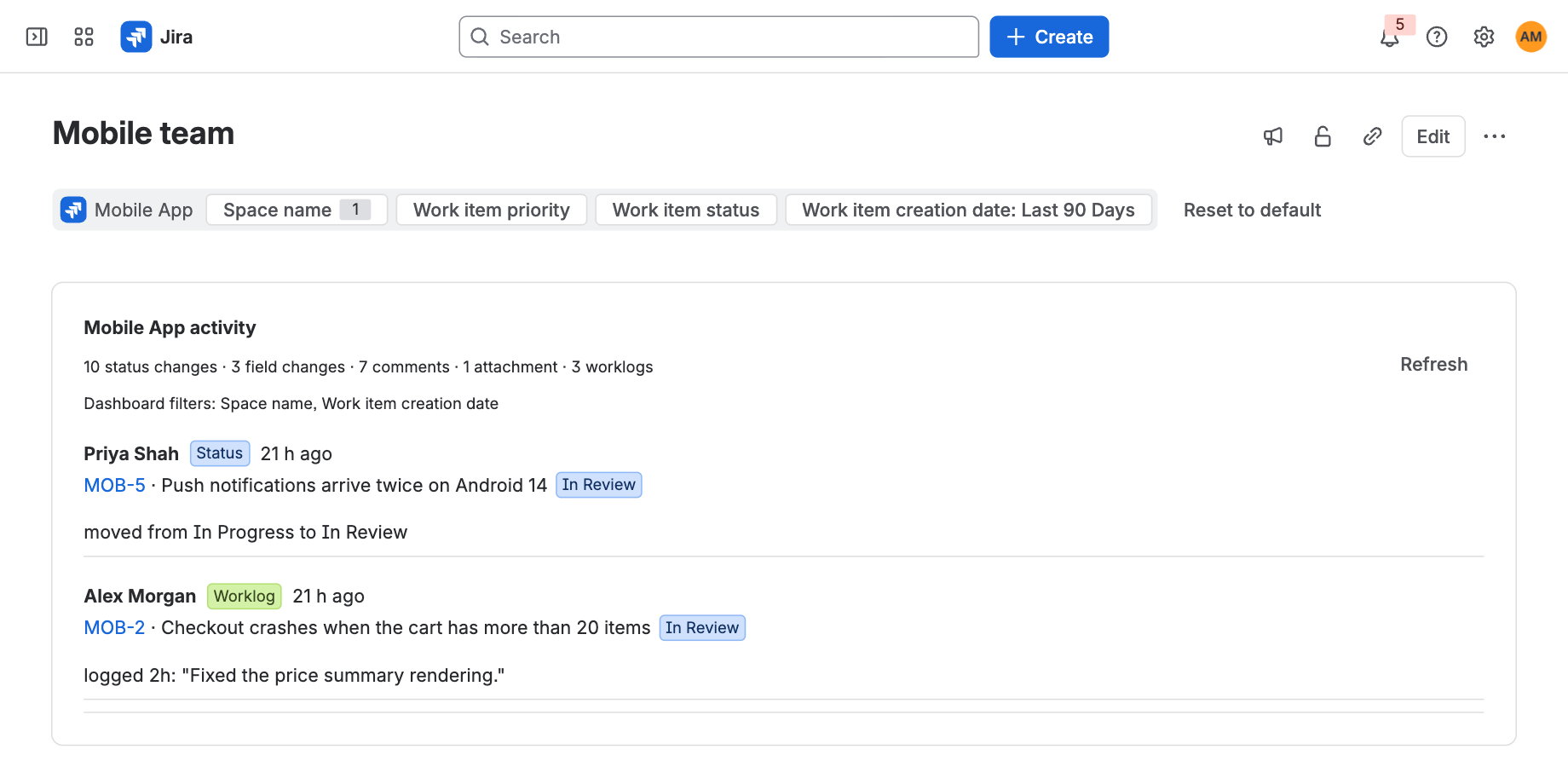
Each person who opens the dashboard sees the feed with their own Jira permissions, and their own "new since your last visit" count.
Features
- Choose the issues with a starred saved filter or any JQL: projects, labels, components, sprints, custom fields.
- Follows the dashboard's filters. On new Jira dashboards, the widget also applies the filter bar at the top (space, status, priority, dates).
- New since your last visit. A count of new items and a marker on each one, with Mark as seen.
- Activity types: issues created, status changes, assignee changes, other field changes, comments, attachments and work logged.
- Track only some fields, such as Labels or Due date.
- People: only show certain people, or hide them. Hide automation and app activity, or your own changes.
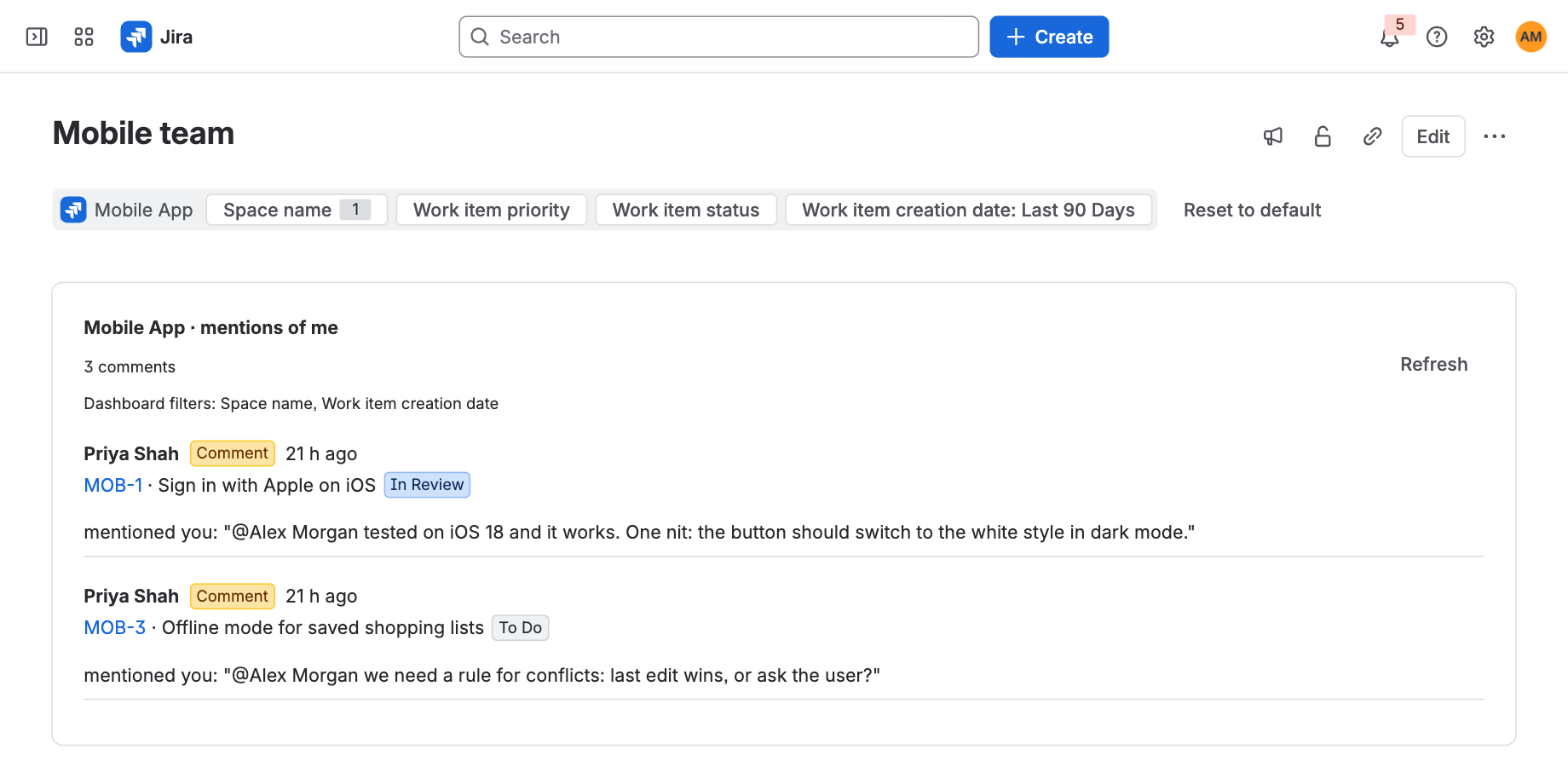
- @mentions inbox: show only the comments that mention the viewer.
- Layout: newest first, or grouped by issue or by day. Grouped or detailed changes. Each issue's current status.
- New and classic dashboards. When Atlassian upgrades a classic dashboard, the gadget's settings carry over to the new widget.
Settings
| Setting | What it does |
|---|---|
| Widget title | The name shown at the top of the widget. |
| Issues from | Saved filter (one of your starred filters) or JQL. Empty JQL means every issue you can see. |
| Time range | Last 24 hours, 3, 7, 14, 30 or 90 days. |
| Follow dashboard filters | Also apply the filters at the top of a new Jira dashboard. |
| Activity | Which kinds of activity to show. |
| Only these fields | Comma-separated field names. Applies to "Other field changes". Empty means every field. |
| People | Only show these people, or hide these people. |
| Hide automation and app activity | Leave out changes made by automation rules and apps. |
| Hide my own changes | Each viewer stops seeing what they did themselves. |
| Only comments that mention me | Turns the widget into a personal inbox of the comments where the viewer was @mentioned. |
| View | Grouped shows a burst of edits as one entry. Detailed shows every change on its own line. |
| Group by | Nothing (newest first), issue, or day. |
| Items shown | 10, 20, 30, 50 or 100. |
| Auto-refresh | Off, or every 5, 15 or 60 minutes. |
Security and permissions
Activity Lens runs on Atlassian Forge, on Atlassian's infrastructure. It reads Jira as the person viewing the dashboard, so nobody sees activity on issues they can't open in Jira. It makes no calls outside Atlassian.
| Permission | Why the app needs it |
|---|---|
read:jira-work | Find the issues chosen by the filter or JQL, and read their history, comments, attachments and work logs to build the feed. Also lists your starred filters in the settings. |
read:jira-user | Show people's names in the feed, and search people in the settings. |
storage:app | Remember when each person last looked at each widget, for "new since your last visit". |
Details are in our privacy policy.
Common questions
The widget is empty
Check that the JQL or filter returns issues in Jira's issue search, that something changed within the time range, and that the activity types you want are ticked. If "Follow dashboard filters" is on, the dashboard's filter bar also narrows the issues.
Someone sees fewer items than I do
That's expected: each person only sees activity on issues their Jira permissions allow. Their "Hide my own changes" and @mentions results are also personal.
A saved filter isn't in the list
The list shows your starred filters. Star the filter in Jira, or paste its JQL instead.
Does it work on classic dashboards?
Yes. Add it as a gadget. When Atlassian upgrades the dashboard, its settings move to the new widget automatically.
Need help?
Email support@northquasar.com, or see the support page.